How APRS Works - Contributor Documentation & Style Guide
Overview
This document covers a few topics related to anyone who wants to contribute content to the How APRS Works website.
We’ll keep this as short and sweet as possible so you can get to the heart of the matter!
Please hang on to a copy of this document for future reference.
- Overview (current section)
- What’s Up With All The Documentation?
- Platform Details
- Information on the products How APRS Works is based on
- Access Control
- Secure access to the site
- Credentials
- Details on your credentials
- Cloudflare
- How browser traffic makes its way from your browser to How APRS Works (and back)
- Authentication
- Steps to log into the site to author content.
- Role-Based Access Control
- This will help you understand your access privileges within the CMS.
- Ghost Editor
- Step-by-step instructions - helpful information to support your content development efforts.
- Headings
- Hyperlinks
- Tricks
- Markdown Resources
What’s Up With All the Documentation?
We bet you’re rolling your eyes, wondering why we are handing you a crazy 20+ page long document.
“Why are they making such a big deal about styling?”
Two reasons:
-
Appearance counts: Think about all of the websites you’ve visited. Some websites are more eye-pleasing than others, and some are downright awful. Readers tend to prefer more eye-pleasing sites, and more importantly, the more uniformity, the more easily readable the content!
-
Portability: How APRS Works is based on Ghost. We may decide to change the Theme applied to the site to give it a different look and feel, or we may abandon Ghost and move to another platform altogether.
Ghost supports Markdown, which the Foundation has selected because it is easy to learn and incredibly portable. We can migrate content formatted with Markdown from Ghost to Sphinx + MyST, Gatsby, Hugo, and MkDocs…all with minimal changes required (if any)!
As long as documentation strictly conforms to Markdown, migrating the content from one platform to another is much easier. Markdown has become increasingly common.
Taking a few extra minutes to ensure your content conforms to the styling we’ve selected will likely save hours of effort later on down the line.
Platform Details
How APRS Works is based on Ghost (https://ghost.org), an open-source publishing platform similar to WordPress but far more professional and easier to use.
The Foundation uses Ghost’s self-hosted version instead of its paid-for offering.
Ghost is comprised of two elements:
-
Web Application
-
Users interact with this when they visit the site to review content.
-
Content Management System (CMS)
-
This is where all administration, content development, and publishing occur.
Access Control
Bad actors are constantly looking for ways to find new vulnerabilities in applications and services and to take advantage of every possible opportunity to exploit them.
As the Content Management System provides all administrative and development functions, ensuring secure access is paramount. If a bad actor compromised the CMS in any way, there would likely be catastrophic results as they would effectively “own” the system.
The Foundation has adopted a security principle known as Zero Trust. It’s exactly what it sounds like. Except for the public-facing website, we assume anyone attempting to access the CMS is untrusted unless they can prove they’re supposed to be there.
We use Cloudflare’s Zero Trust solution and have implemented a security policy to ensure that any access to the CMS is authenticated via multi-factor authentication.
We’ll cover the authentication flow shortly. We didn’t want you to be surprised when you see a Cloudflare web page when you expect to see how APRS Works!
Credentials
We require a valid email address to provide access to both Cloudflare Zero Trust and Ghost CMS.
When you request access to the site, the site administrator has to provision access in two places:
- One-Time PIN - Cloudflare Zero Trust
- Your email address is added to an authorized list, allowing you to authenticate to Cloudflare Zero Trust via a One-Time PIN.
- Once authenticated to Cloudflare Zero Trust, you will land on the CMS login page.
- Ghost CMS
- A site administrator will create a user account, and the CMS will email you a link to activate the account and set your password. Check your spam folder!
- Take a couple of minutes to review the authentication workflow details in the next section - it will make your life a lot easier!
Cloudflare
APRS Foundation selected Cloudflare for its services in three areas: security, performance, and reliability. Cloudflare provides an extensive suite of services, including—but not limited to—DNS, caching, compression, certificates/certificate management, SSL/TLS termination, load balancing, web application security, zero-trust services, and more.
Thanks to our mission to “Ensure the future of APRS,” the Foundation receives services free of charge from Cloudflare through their Project Galileo program.
Anytime you access How APRS Works, whether as a user or you are accessing the CMS, all browser requests are sent through Cloudflare’s global network and then delivered to the origin server (Ghost).
Cloudflare is continually in the data path—all requests to and from How APRS Works flow through its network. This makes Cloudflare the ideal location to optimize content delivery while ensuring secure access.
To give you a simple visual depiction of the process…
- Open your browser and navigate to https://how.aprs.works. This is the default URL to access public-facing content - not the CMS. ***
- The browser performs a DNS query for
how.aprs.works, and Cloudflare returns two to three Cloudflare-owned IPv4 and two to three Cloudflare-owned IPv6 addresses. - Your browser initiates an HTTP Request to Cloudflare containing the URL https://how.aprs.works.
- Cloudflare receives the HTTP Request and makes a new HTTP request on your behalf to the origin server (Ghost).
Browser —-> HTTP Request -—> Cloudflare (via Cloudflare IP) —->
HTTP Request —-> How APRS Works (via the origin server IP)
Then, the same thing happens in the opposite direction for the HTTP Response:
- The origin server (How APRS Works) returns an HTTP Response to Cloudflare
- Cloudflare initiates a new HTTP Response to your browser on behalf of the origin server
Ghost —-> HTTP Response (via the origin server IP) -—>
Cloudflare —-> HTTP Response (via Cloudflare IP) -—> Browser
*** All requests to https://how.aprs.works, whether for the public-facing website or the CMS, go through Cloudflare.
If you’re interested in learning more about how Cloudflare works, we highly recommend the following resource:
How Cloudflare Works - Learning Paths
Authentication
During the authentication process, your browser will bounce back and forth a couple of times. This is perfectly normal behavior!
Here is some technical content for “propeller heads” interested in learning more about our technology stack…
The policy in Cloudflare Zero Trust looks for any requests beginning with https://how.aprs.works/ghost. It checks whether the browser requests contain a valid authenticated session by looking for a session cookie.
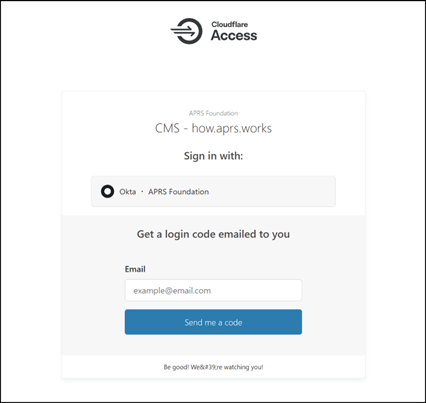
If a session cookie does not exist, Cloudflare issues an HTTP redirect to your browser,, which will land you on the Cloudflare Zero Trust login page.
-
Enter your email address, then click Send me a code.
You should receive a six-digit token code via email within a few seconds. In the worst-case scenario, it may take 30 to 60 seconds, but that is rare.
-
Enter the token code and click Sign-In.
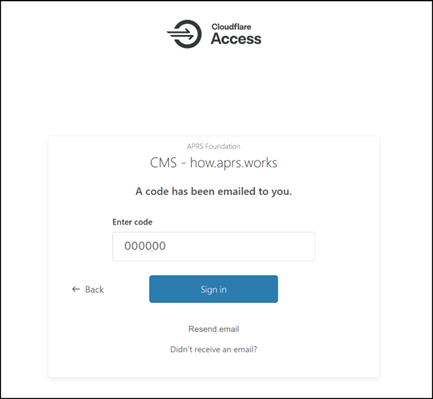
If you do not receive the token code:
- Check your Spam folder
- Wait a few minutes, then try again. While not common, there have been some isolated incidents where the emails were not sent
That’s it! The next stop is the How APRS Works CMS login page!
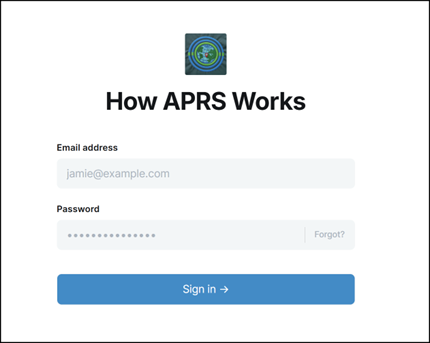
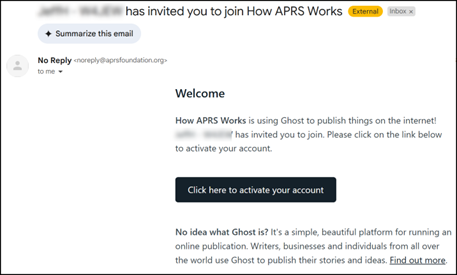
If you have not set up your How APRS Works account, open the email you received and click the link. This is an example of what the email you should have received looks like.
If you do not see the email, search for messages from noreply@aprsfoundation.org and check your spam folder.
Provide your Full name, Email address, and Password, then click Create account to proceed.
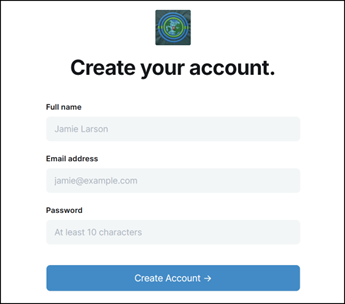
Your Cloudflare Zero Trust session will remain valid for 24 hours. After the 24-hour timer expires, you must re-authenticate.
The default authentication timer for Ghost is significantly longer, though we are investigating how to restrict it further.
Role-Based Access
Your Ghost CMS account has been assigned the Contributor role. Contributors can create and edit their posts but cannot publish them. An Editor needs to approve and publish for them.
When you finish authoring content, contact someone at the APRS Foundation. We will review it quickly and publish the content on your behalf.
Ghost Editor
The official Ghost documentation that covers how to use the Editor is available here:
https://ghost.org/help/using-the-editor/
Keep in mind that this is the self-hosted version of Ghost. As such, you may see differences between what’s in the official documentation and what's in the editor on How APRS Works. Feel free to contact us if you run into any issues.
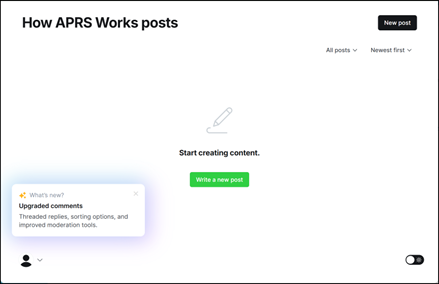
Click New Post to create your first post. The Editor will open up.
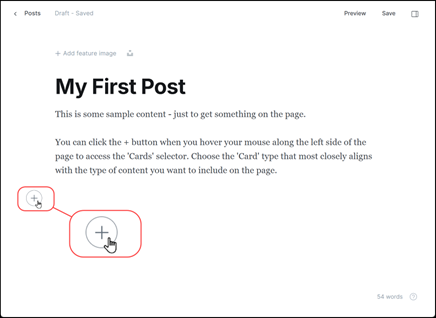
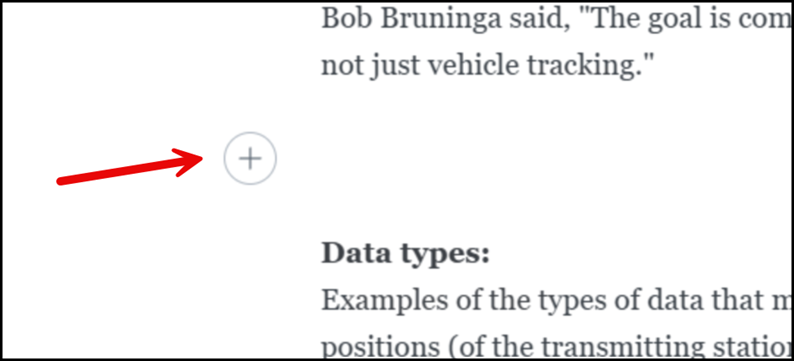
You can dive right in and start typing. The first line is automatically formatted as Heading 1 (Title block). You can also click the + button along the left side of the page to add content based on the Card selector.
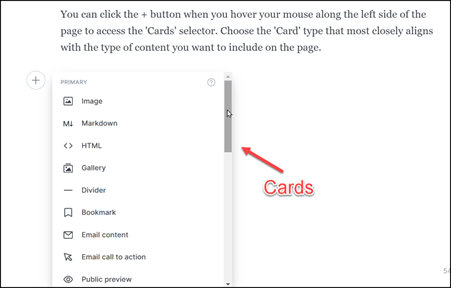
Here’s an idea of what you’ll see in the Cards drop-down select. The most useful ones we’ve used thus far are Image, Markdown, HTML, and Divider. Feel free to experiment!
There’s a ton of different options available in the Cards menu:
- Image
- Markdown
- HTML
- Gallery
- Divider
- Bookmark
- Email content
- Email call to action
- Public preview
- Button
- Callout
- Toggle
- Video
- Audio
- File - Please use this SPARINGLY (if at all)!!!
- Product
- Header
You can also embed media from third-party sites if you want:
- YouTube
- X (formerly Twitter)
- Unsplash
- Vimeo
- CodePen
- Spotify
- SoundCloud
More details are available on the Ghost documentation site:
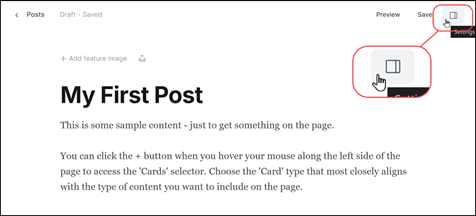
Click the rectangular shape in the upper right corner to open the Post Settings menu. Many options are available here, including the path Ghost will automatically assign to your post. By default, the value is based on the title of your post, but it can be modified.
You can also delete your post(s) from the Post properties view.
PLACEHOLDER
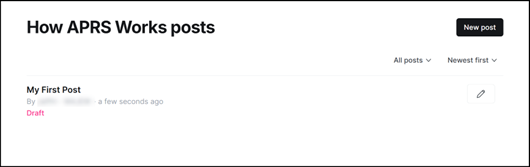
Once you exit from a document, you’ll return to the CMS portal to see a list of your posts.
Headings
One crucial aspect of organizing and navigating content on a site is using Headings throughout the body of your posts. Some applications refer to them as Headings, while others refer to them as Styles.
You are likely familiar with this concept if you have used Microsoft Word, Google Docs, or Markdown.
Ghost also supports Headings. As you create your content, note the top-most text block. It is automatically formatted using the Heading 1 style. Other applications have a reserved Heading/Style named Title. Ghost uses Heading 1 for the title block in conformance with the Markdown standard.
There are also Style options for:
Heading 1 (Title)
    Heading 2
        Heading 3
            ...and so on
Suppose you intend to use headings for sections within your document. It’s common practice to include the Heading within a paragraph, simply using Bold, Italics, Underline, or some other method to ensure the text is distinguishable.
Here’s an example of including the Heading within the Paragraph:
The preferred method is to place the Heading in a separate text block and select the appropriate Heading.
Add a new section:
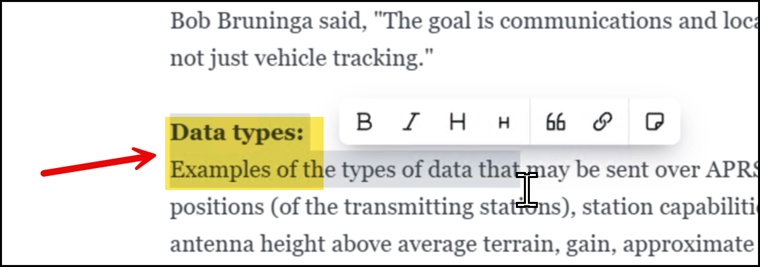
Copy/paste the relevant text into the new section - then highlight the text and choose the appropriate level (Heading 2 in this example).
Notice the newly added heading has the Bold option selected - this is the result of using copy and paste to replicate the content.
Deselect Bold from the formatting and simply use the default styling associated with the Heading value selected:
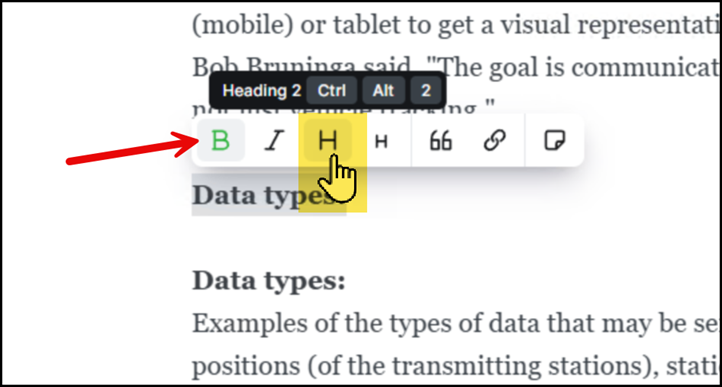
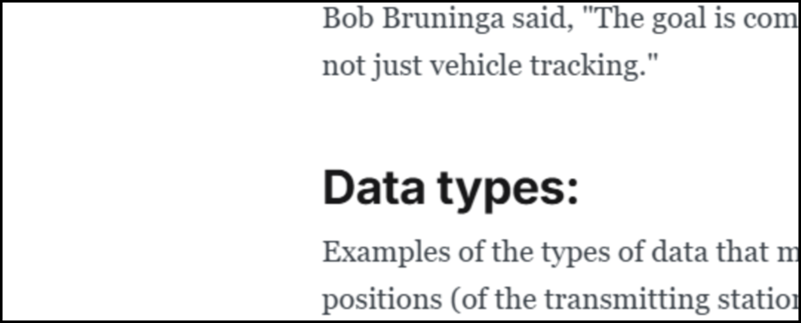
Once you’ve added the new section and selected the Heading, you can safely delete the original text from the Paragraph section. This is what the final result should look like:
Nested Headings
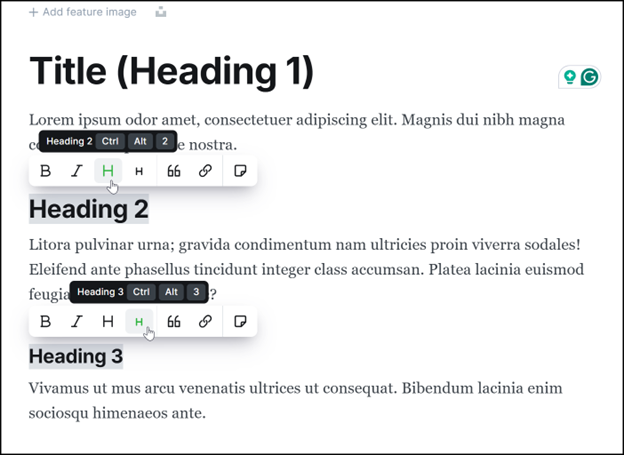
There will likely be cases where you want to emphasize text within a section of your document. This section on Nested Headings is a great example! The previous section (Headings) has Heading 2 applied, while this section (Nested Headings) has Heading 3 applied.
Here’s an example in the Ghost Editor (with a bit of screenshot trickery to show multiple sections of text highlighted simultaneously):
Hyperlinks
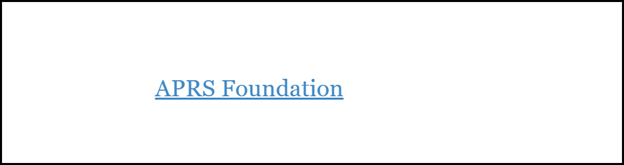
We are confident that contributors will want to add hyperlinks to other sites. From a styling standpoint, we prefer you use the title of the site/page and then rely on the Hyperlink option in the Ghost Editor to convert the text to a clickable link.
Here are some dos and don’ts:
Don’t leave a “Bare URL” to a third-party site within your document. For example:
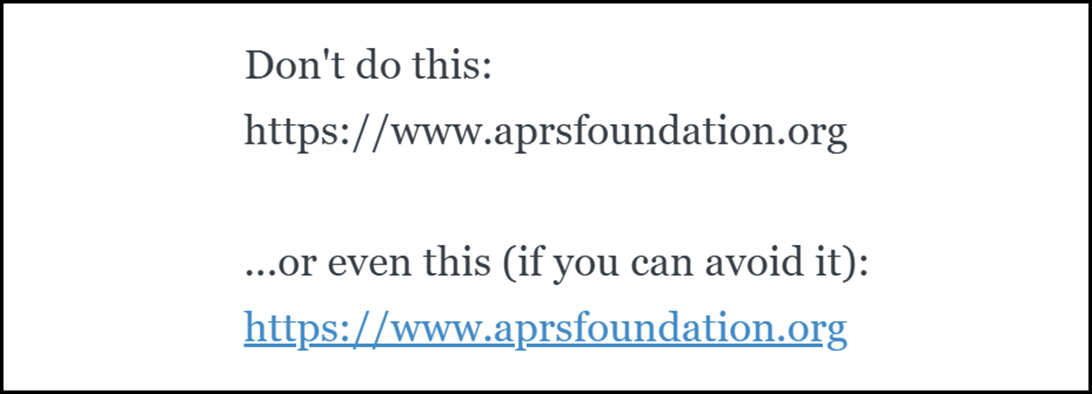
Instead, use the Hyperlink format option to indicate the user can click on the text to navigate to the intended destination - like this:
The Hyperlink option can create two types of links:
- Links to other documents on the same site
- Links to external sites
Hyperlink - Document on Same Site
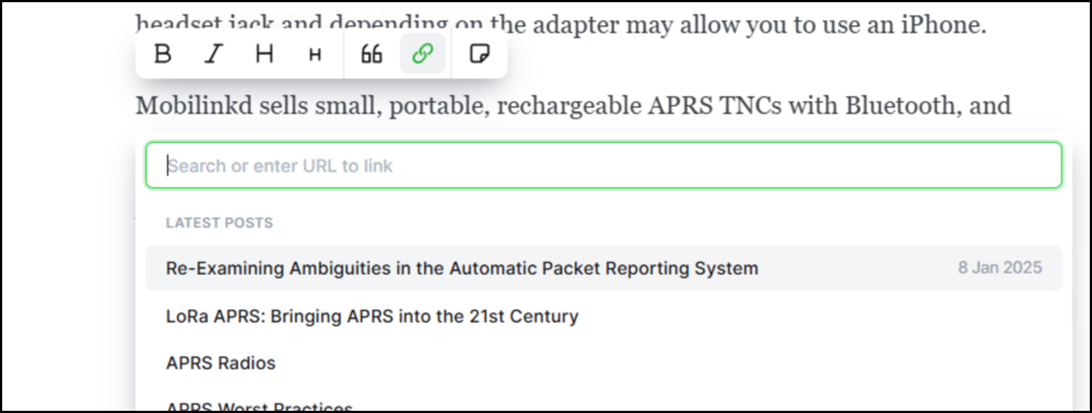
If you want to link to another document on How APRS Works, click the Hyperlink button. A drop-down, select menu will appear with a list of documents on the site. You can type in the dialog box to search for documents if you don’t see the one you want in the results displayed:
Hyperlink - Third-Party Site
To create a Hyperlink to a third-party site, enter the site's name, then select it and choose the Hyperlink option.
For example, this is how to create a link to the APRSdroid website:
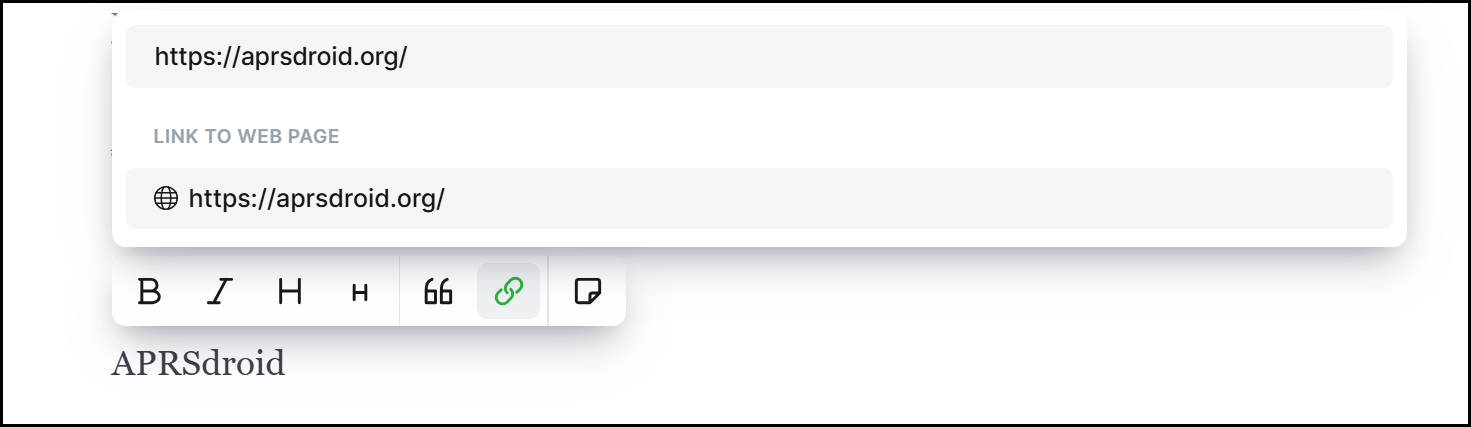
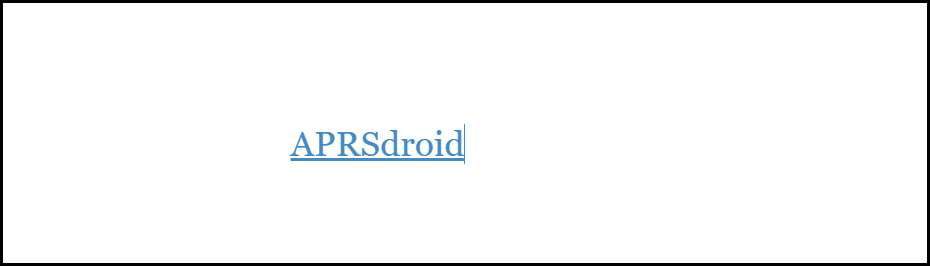
Press Enter once you’ve finished entering the URL. This is what it should look like:
Tricks
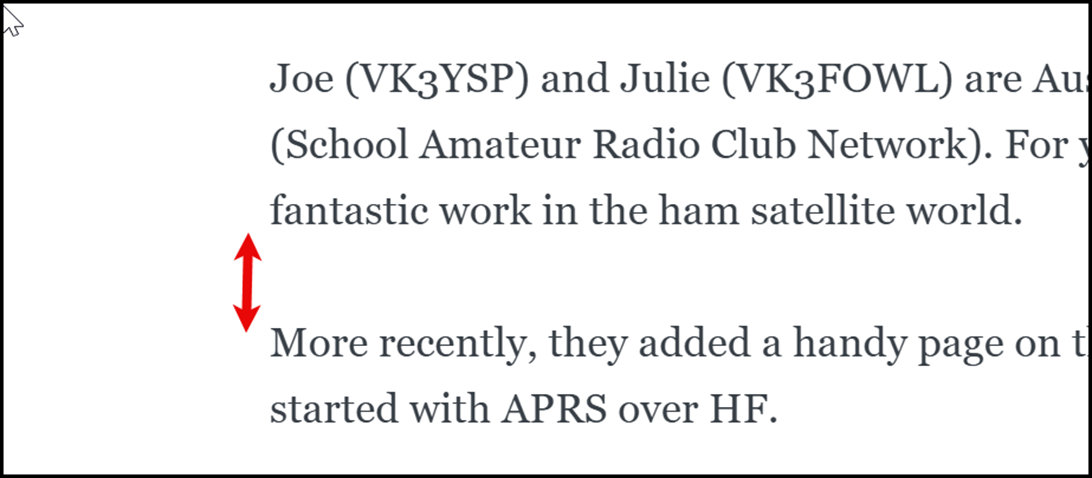
When hitting enter/carriage return, a relatively significant whitespace is added between paragraphs. In most cases, this is OK. But there may be other cases where you want to group content closer together.
This is an example showing the default amount of whitespace:
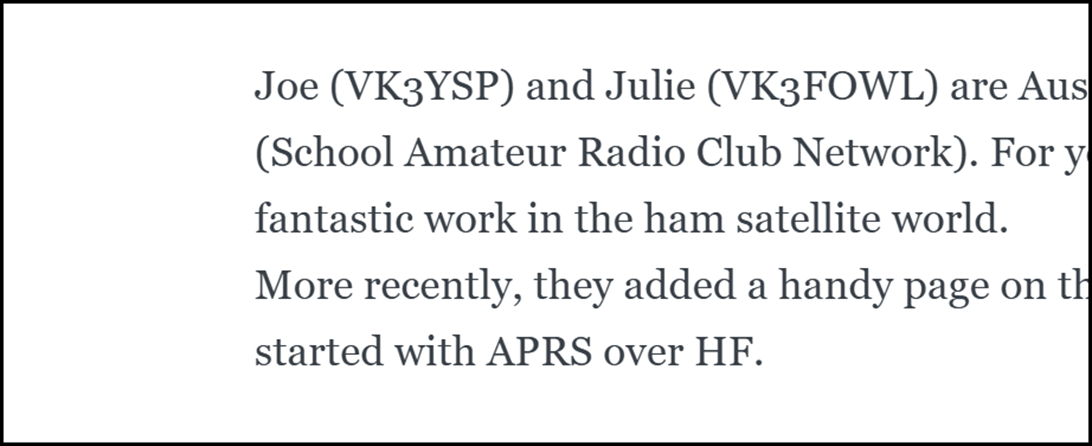
There’s an “undocumented feature” to work around this!
Instead of pressing ENTER, try holding down the SHIFT key, then press ENTER.
Here’s the same text from the previous example, without the extra whitespace - thanks to SHIFT + ENTER!
Closing
The APRS Foundation is ever so grateful for your contributions to How APRS Works. Keep in mind, you’re not developing content for the Foundation, you’re developing content for amateur radio users wanting to learn more about APRS around the world!
Our goal to deliver up-to-date, accurate, and easy to digest content would simply not be possible without you! And for this, we say thank you!
Markdown Resources
Markdown is FUN and it’s so easy to learn (compared to other markup languages)!
You can create beautiful content with nothing more than a text editor, but there are a lot of great applications available that provide a WYSIWYG interface.
Once you’ve used Markdown for a few days, you’ll find it becomes second nature. You might even find yourself using it for personal reasons, at work, or other applications.
Markdown has too many benefits to list!
Markdown Documentation
There is no shortage of websites to learn more about Markdown, but these are our top three choices:
- Daring Fireball: Markdown - where it all started! John Gruber created Markdown in 2004!
- Markdown Guide
- Markdown Reference (CommonMark)
Markdown Applications
Some of the following applications are native Markdown editors, while others are applications that natively support Markdown:
- MacDown: https://macdown.uranusjr.com/
- Marked 2: https://marked2app.com/
- Markdown Monster: https://markdownmonster.west-wind.com/
- Obsidian: https://obsidian.md/
- Typora: https://typora.io/
- Visual Studio Code: https://code.visualstudio.com/
- Zettlr: https://www.zettlr.com/